

Full storage affects updates, apps, and performance. Regular cleanup creates extra space quickly.
These simple methods solve iPhone Storage Issues. Always back up important data before deleting.
Key Takeaways:
- Check storage usage before removing files.
- Offload unused apps without losing app data.
- Use cloud storage for photos and documents.
Solve iPhone Storage Issues by Checking Storage Usage
Understanding storage usage is the first step. It helps identify items consuming valuable space.
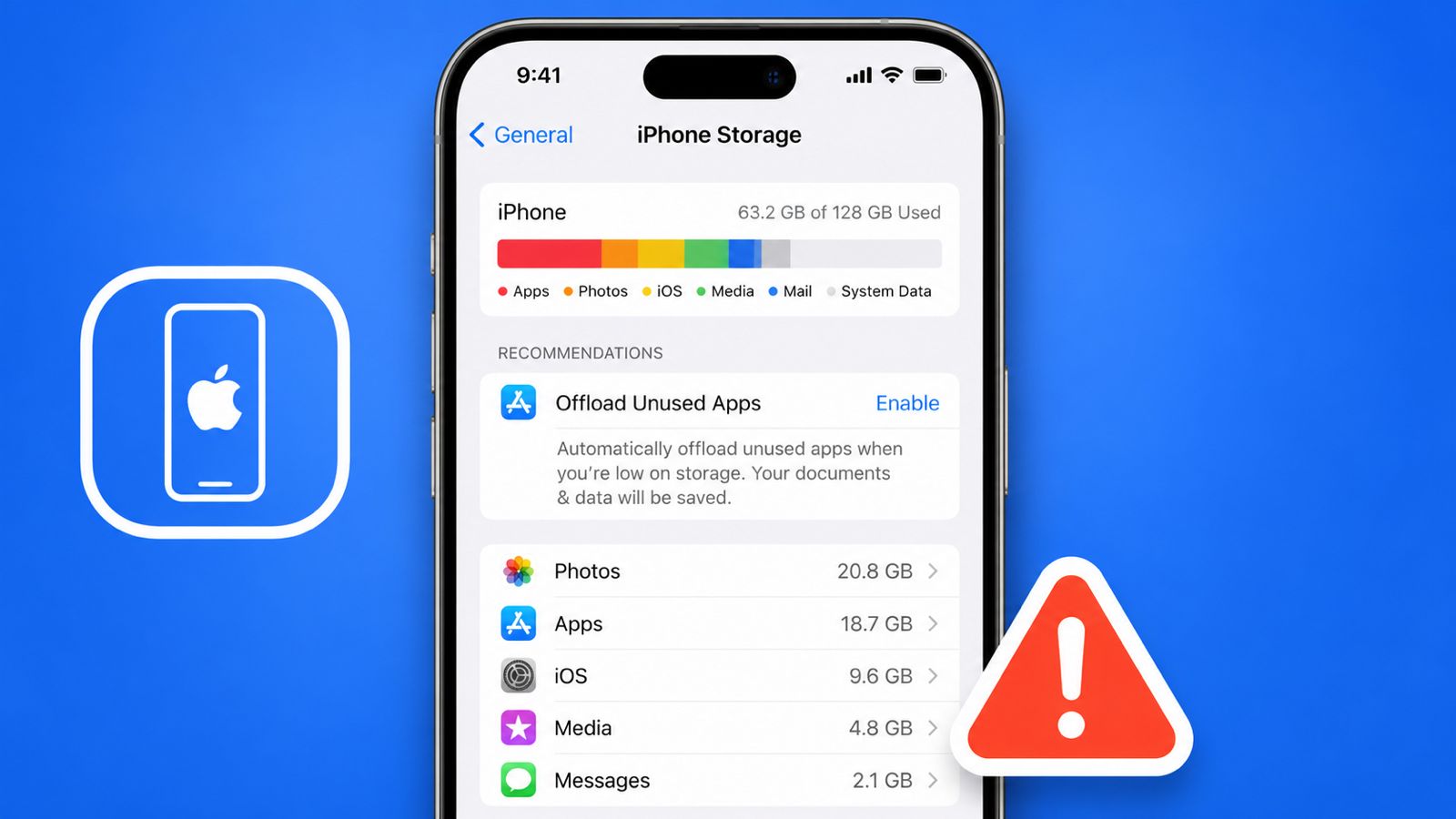
Open Settings and tap General first. Next, select iPhone Storage from options. A storage chart appears on screen. It shows how space gets used.
Scroll down for detailed storage information. Sort items by size when available. This quickly reveals the biggest storage users.
Photos often use significant storage space. Videos usually require even more storage. Apps and downloaded files also grow. Large attachments may consume space unnecessarily.
Review large attachments through storage settings. Messages and Mail often contain large files. Delete attachments you no longer need. This creates additional storage very quickly.
Remember that settings may vary slightly. Different iPhone models show different layouts. Most instructions work on iOS 12. Newer versions usually follow similar steps.
By Managing Apps
Unused apps waste storage space every day. Managing them improves available storage immediately.
You can delete apps permanently instead. Deletion removes both apps and data. This frees the largest amount of space.
Follow these steps to delete apps:
- Touch and hold an app icon.
- Wait until icons begin moving.
- Tap the minus sign displayed.
- Select Delete App to confirm.
Another deletion method also works:
- Touch and hold the app.
- Choose Remove App from menu.
- Tap Delete App to finish.
Removing from Home Screen differs completely. The app stays inside the App Library. It still occupies storage on the iPhone.
Offloading apps offers another useful option. Offloading removes apps but preserves data. Reinstalling restores content without starting over.
Follow these steps for offloading:
- Open Settings and tap General.
- Select iPhone Storage from the menu.
- Choose the app for offloading.
- Tap Offload App and confirm.
Automatic offloading saves effort over time. Open Settings and choose the App Store. Enable the Offload Unused Apps setting. Rarely used apps are removed automatically.
Solve with Photos, Files, and Cache
Photos and videos fill storage very quickly. High-resolution media requires additional device space.
Open Photos and review albums regularly. Delete unwanted videos and duplicate photos. Check the Recently Deleted folder often. Permanently remove files no longer needed.
Be careful before deleting media files. Permanently removed items cannot be recovered. Backup important memories before deleting anything.
Enable Optimize iPhone Storage for savings. High-quality originals stay inside iCloud. Smaller versions remain on your device.
Cloud storage helps free additional space. Files stay accessible through internet connections. iCloud automatically backs up photos and videos.
Remember an important iCloud storage detail. Deleting files removes iCloud copies too. Always verify before deleting important content.
Third-party cloud services provide alternatives. Some offer stronger privacy and protection. Encrypted services protect photos and documents. Automatic backups simplify storage management greatly.
Store documents and files online too. Cloud folders keep content organized better. Files remain available across multiple devices.
Cloud-based note applications also help. Notes stay synchronized across all devices. Collaboration features improve productivity and access.
Browser cache can consume storage gradually. Safari stores temporary website information locally. Cached files build up over time.
Clear Safari cache using these steps:
- Open Settings on your iPhone.
- Scroll down and select Safari.
- Tap Clear History and Website Data.
- Choose a timeframe if available.
- Confirm by tapping Clear History.
Regular cache cleaning improves browsing performance. It also helps recover storage space.
The End Note
Check storage, manage apps, and optimize photos. Use cloud storage for important files.
Clear cache regularly for better performance. These Habits Solve iPhone Storage Issues.
